Edit your template:
To edit high quality template .psd you have to use Photoshop, or if you don’t have it, you can use free editor online Photopea.com. They work identically. So, you can edit as you like (as many times you need) all pre-compiled text lines. Here step-by-step instructions:
How to edit text lines:
A) click on T (Text) icon on the left menu
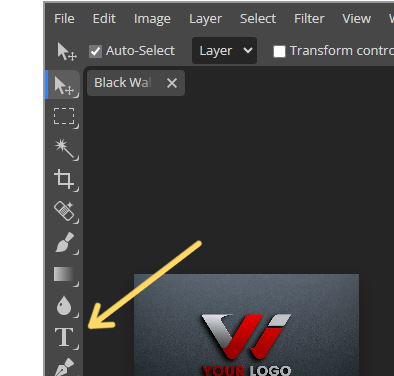
B) go on text line you like to edit, click on it, edit as you like, then click on another layer to edit (repeat for all lines you like to edit)
in some templates, are text lines are grouped in another mask, so you have to activate the area (and then you can edit all easily)
1) search in right menu the “Edit Text” layer
2) click on it (see screenshot with hand that points exactly where to click on): it will open another mask
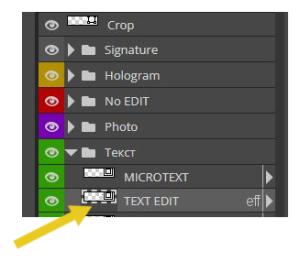
3) in this mask, you will see all text lines you can edit: click on the one(s) you want to edit as explained in point B
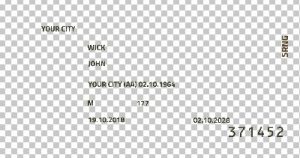
4) when finished, close this mask (and save when it ask)
p.s You don’t have to add new layers: you just need to edit what is already available
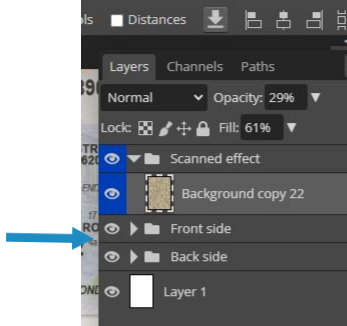
Select front or back of a document:
- look at right layers menu
- tick/select only the side you want to edit (only front or only back)
Signature:
 if you like to add a personal signature, the easiest way is go to an online editor, like www.picturando.com/photo-editor/ or click on Draw, write your signature, click on Save as .png and then you can add on your template (click on Signature layer, upload your signature, untick the default one). Otherwise you can easily use the already present one, just edit it.
Availability:
After 1 week, you cannot download/access template anymore.
Issues:
You did not received your product? Usually we deliver in some hours/6 hours max. If you did not received anything, check the spam folder, and feel free to contact us (also by Telegram: @picturando )